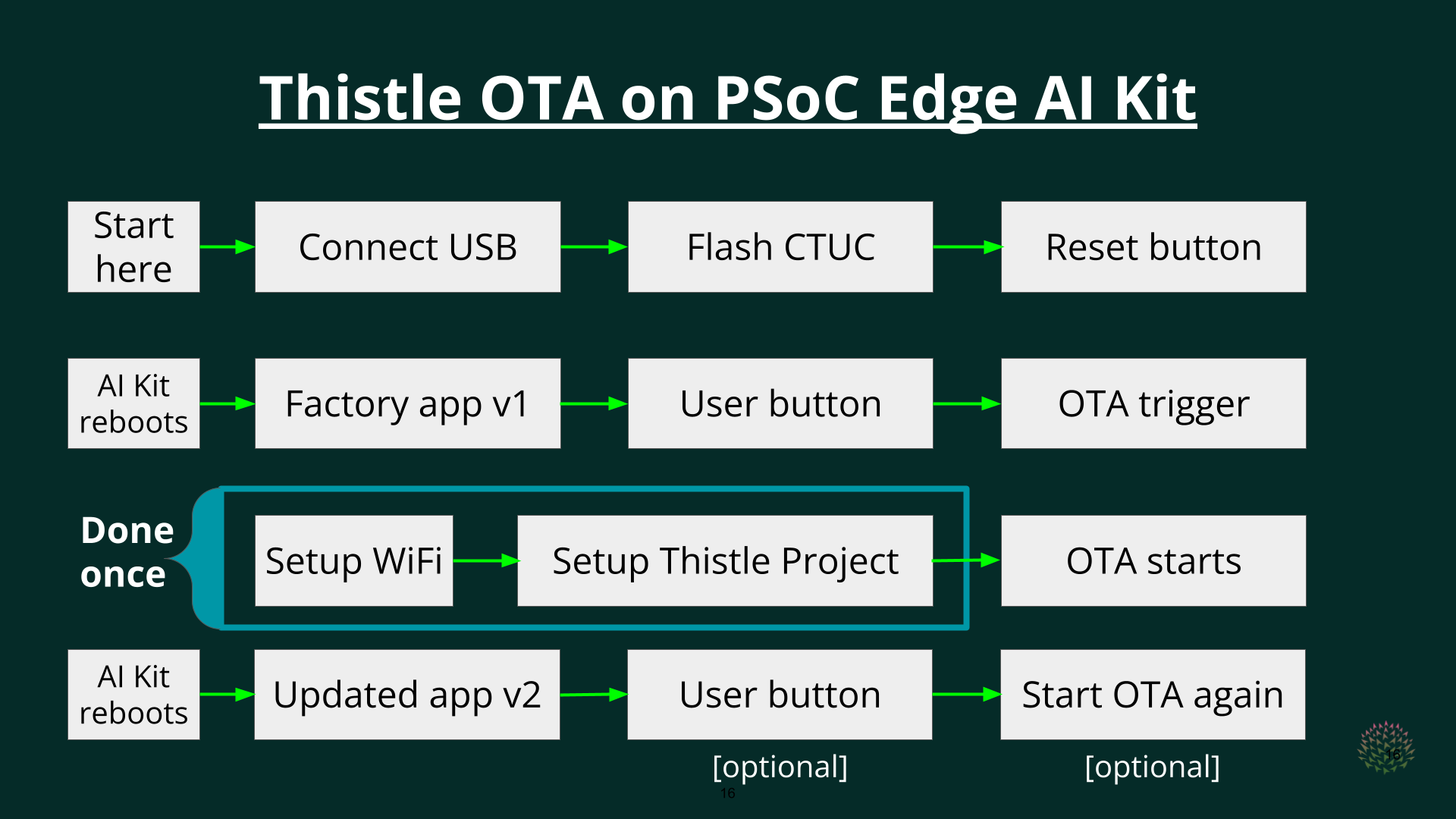
 ## Tools Needed for This Tutorial
### Hardware
* One [PSoC Edge AI Kit](https://www.infineon.com/evaluation-board/kit-pse84-ai) Evaluation board with PSOC™ E84
for Artificial Intelligence
## Tools Needed for This Tutorial
### Hardware
* One [PSoC Edge AI Kit](https://www.infineon.com/evaluation-board/kit-pse84-ai) Evaluation board with PSOC™ E84
for Artificial Intelligence 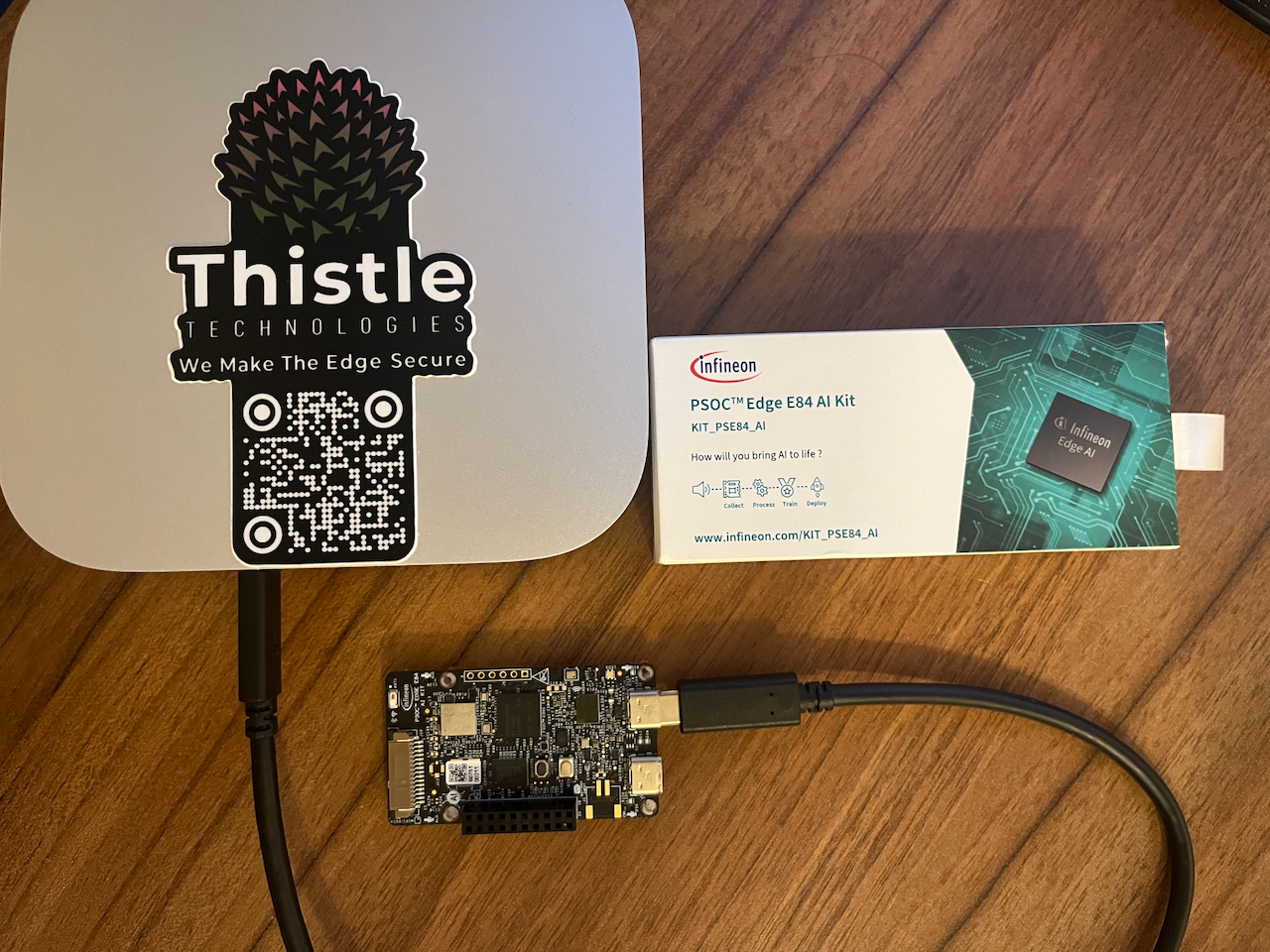 ### Quick Start
1. Install the [ModusToolbox Programmer](https://softwaretools.infineon.com/tools/com.ifx.tb.tool.modustoolboxprogtools)
2. Download our CTUC binary for PSoC Edge
3. Flash the CTUC binary to your PSoC Edge AI Kit using the ModusToolbox Programmer
4. Start minicom or your preffered terminal application
* Press the black `Reset button` and observe:
```
Total Flash Size:67108864 bytes
Thistle Update Client for MCUs on the PSoC Edge AI kit
=== This demo CTUC will always flash a new firmware regardless of Release versioning ===
Current CTUC mode: Enroll (First Run)
=== Thistle Setup ===
Enter your Thistle Device Enrollment Token (max 64 chars):
```
## Device Enrollment Token
The Device Enrollment Token is unique per project and can be found in your Thistle Control Center (TCC).
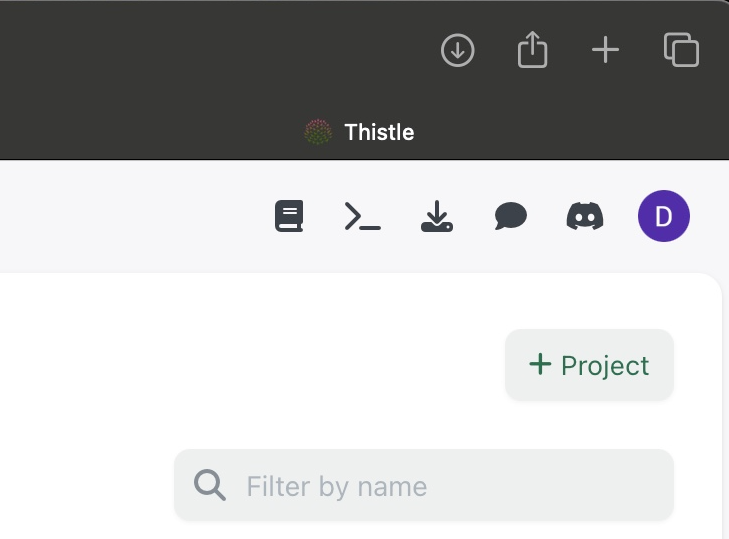
Create a new project by pressing the `+Project` button in the top right of TCC:
### Quick Start
1. Install the [ModusToolbox Programmer](https://softwaretools.infineon.com/tools/com.ifx.tb.tool.modustoolboxprogtools)
2. Download our CTUC binary for PSoC Edge
3. Flash the CTUC binary to your PSoC Edge AI Kit using the ModusToolbox Programmer
4. Start minicom or your preffered terminal application
* Press the black `Reset button` and observe:
```
Total Flash Size:67108864 bytes
Thistle Update Client for MCUs on the PSoC Edge AI kit
=== This demo CTUC will always flash a new firmware regardless of Release versioning ===
Current CTUC mode: Enroll (First Run)
=== Thistle Setup ===
Enter your Thistle Device Enrollment Token (max 64 chars):
```
## Device Enrollment Token
The Device Enrollment Token is unique per project and can be found in your Thistle Control Center (TCC).
Create a new project by pressing the `+Project` button in the top right of TCC:
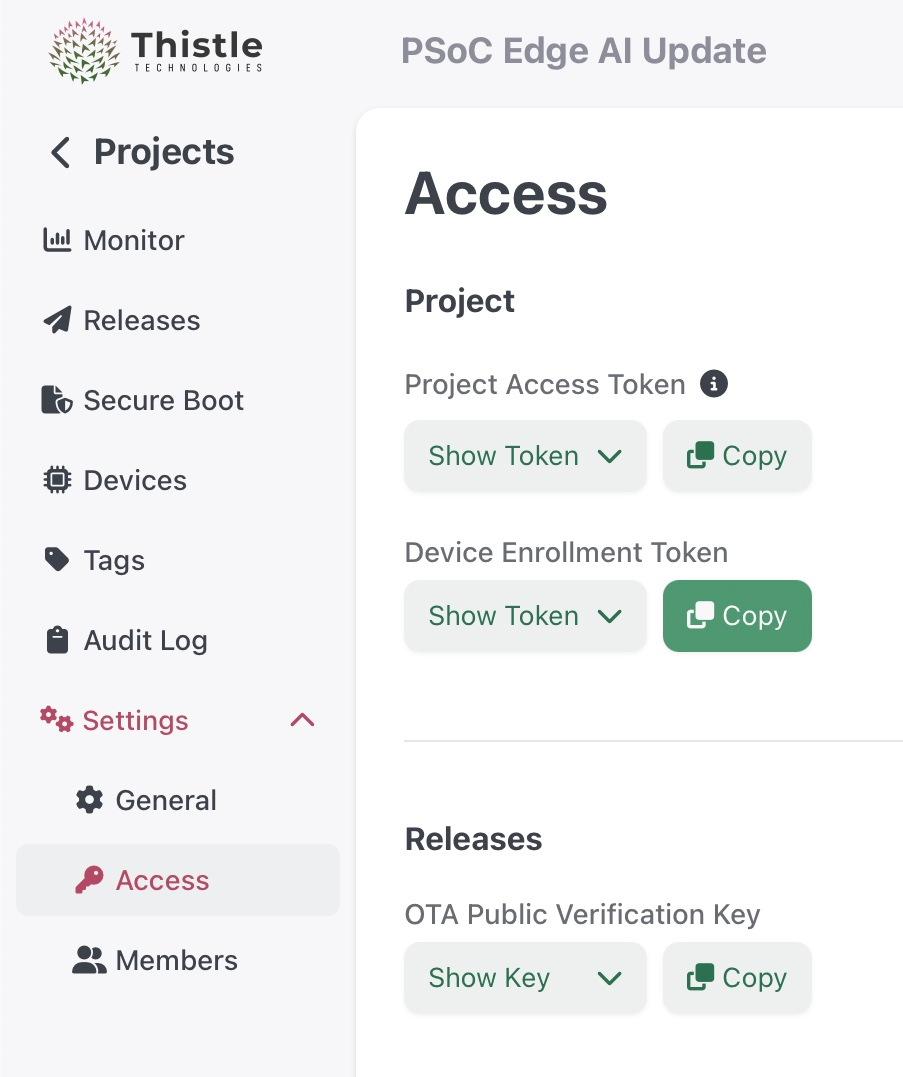
 **Enter your new project** and and go into `settings` (it is the last menu on the left),
open the `access` submenu and press the `copy` button next to the `Device Enrollment Token`:
**Enter your new project** and and go into `settings` (it is the last menu on the left),
open the `access` submenu and press the `copy` button next to the `Device Enrollment Token`:
 Go back to the terminal and paste the value of the `Device Enrollment Token` and press "Enter".
The next prompt is for the `Thistle Public Verification Key` that is available in the same settings page.
Copy the `OTA Public Verification Key`, then paste it into the terminal.
```
Enter your Thistle Public Key (max 94 chars):
```
Last prompt asks for WiFi settings, so that the PSoC Edge AI Kit
can download OTA updates from your TCC project.
```
=== WiFi Setup ===
Enter WiFi SSID (max 32 chars): wifi6
Enter WiFi Password (max 63 chars): halloween
```
OTA starts now and you should be able to see an output likes this:
```
Wi-Fi Connection Manager initialized.
Successfully connected to Wi-Fi network 'wifi6'.
IPv4 address assigned: 192.168.68.107
Enrolling
Connecting to Thistle Control Center ...
Connected to Thistle Control Center
Response Status: 200
Enrolling to Thistle Control Center
Response Status: 200
Found device_token: 64dc12a986f08a...
```
Go back to the terminal and paste the value of the `Device Enrollment Token` and press "Enter".
The next prompt is for the `Thistle Public Verification Key` that is available in the same settings page.
Copy the `OTA Public Verification Key`, then paste it into the terminal.
```
Enter your Thistle Public Key (max 94 chars):
```
Last prompt asks for WiFi settings, so that the PSoC Edge AI Kit
can download OTA updates from your TCC project.
```
=== WiFi Setup ===
Enter WiFi SSID (max 32 chars): wifi6
Enter WiFi Password (max 63 chars): halloween
```
OTA starts now and you should be able to see an output likes this:
```
Wi-Fi Connection Manager initialized.
Successfully connected to Wi-Fi network 'wifi6'.
IPv4 address assigned: 192.168.68.107
Enrolling
Connecting to Thistle Control Center ...
Connected to Thistle Control Center
Response Status: 200
Enrolling to Thistle Control Center
Response Status: 200
Found device_token: 64dc12a986f08a...
```
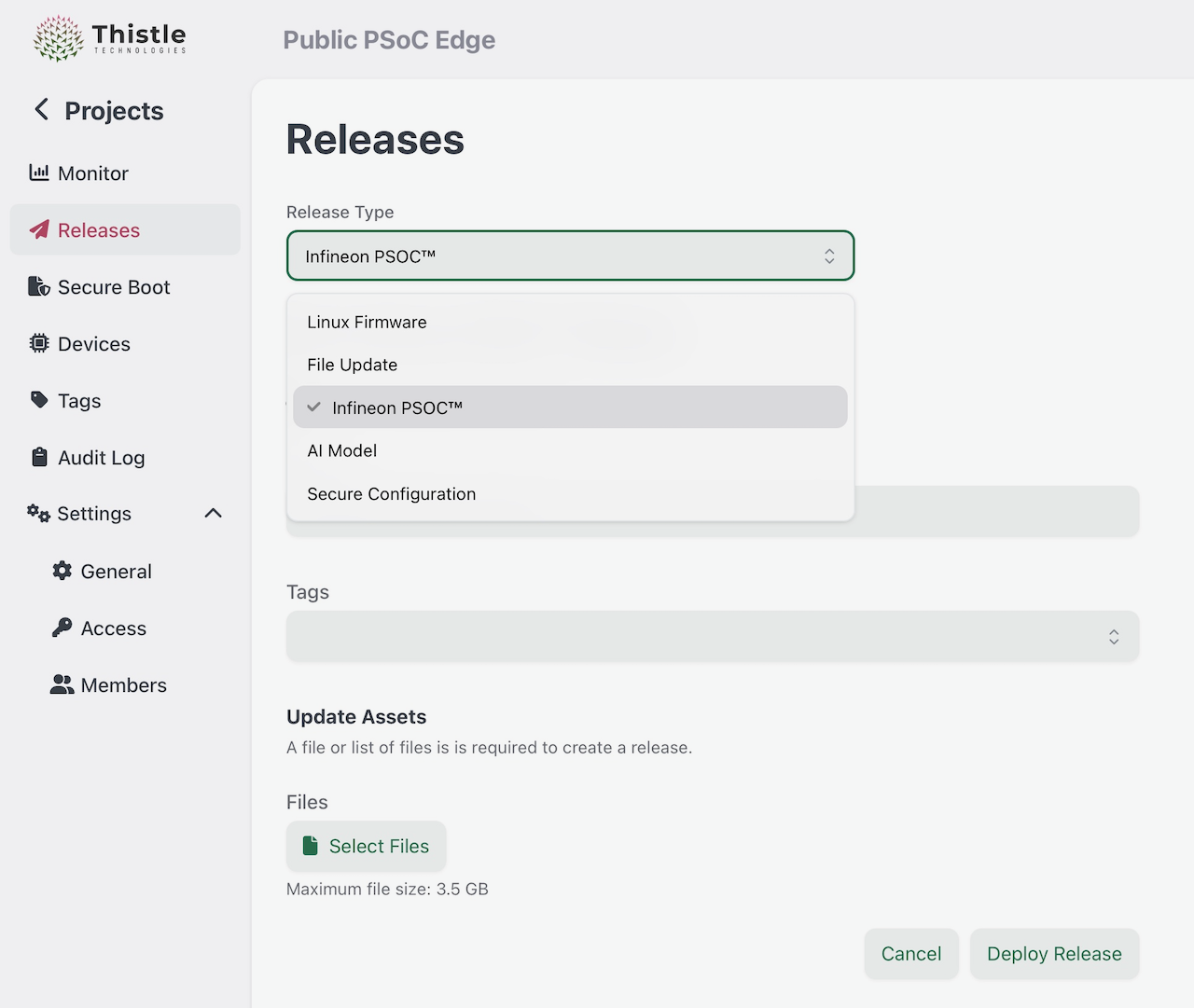 As shown on the picture above, perform the following three steps:
1. Select the "Infineon PSoC" from the drop-down menu
2. Press the "Select Files" button and upload the DEEPCRAFT-AlarmModel.bin (link below)
3. Press the "Deploy Release" button. That's it!
This prebuilt Alarm Detection Model is based on
the [DEEPCRAFT Ready Models for PSoC Edge](https://github.com/Infineon/mtb-example-psoc-edge-ml-deepcraft-deploy-ready-model/)
by Imagimob (an Infineon Technologies company): [download](https://downloads.thistle.tech/psoc-edge/DEEPCRAFT-AlarmSound.bin)
## Start OTA Update
Press the white `User button` on the PSoC Edge AI Kit
```
Checking for a new firmware update
Connecting to Thistle Control Center ...
Connected to Thistle Control Center
Fetching the latest manifest for this project
...
Manifest is genuine
Inform Thistle Control Center of started event
Downloading the latest release for this device
...
```
🎉 Congratulations! OTA is now under way
As shown on the picture above, perform the following three steps:
1. Select the "Infineon PSoC" from the drop-down menu
2. Press the "Select Files" button and upload the DEEPCRAFT-AlarmModel.bin (link below)
3. Press the "Deploy Release" button. That's it!
This prebuilt Alarm Detection Model is based on
the [DEEPCRAFT Ready Models for PSoC Edge](https://github.com/Infineon/mtb-example-psoc-edge-ml-deepcraft-deploy-ready-model/)
by Imagimob (an Infineon Technologies company): [download](https://downloads.thistle.tech/psoc-edge/DEEPCRAFT-AlarmSound.bin)
## Start OTA Update
Press the white `User button` on the PSoC Edge AI Kit
```
Checking for a new firmware update
Connecting to Thistle Control Center ...
Connected to Thistle Control Center
Fetching the latest manifest for this project
...
Manifest is genuine
Inform Thistle Control Center of started event
Downloading the latest release for this device
...
```
🎉 Congratulations! OTA is now under way