AI model provenance refers to the documentation of an AI model’s origin. One can
use Thistle’s OTA update system to deploy one or more AI model files to devices,
and allow an AI application running on devices to authenticate deployed AI model
files before applying them, and thus establishing provenance. In this guide, we
walk you through the steps to
- digitally sign and publish an AI model file using Thistle Release Helper
(TRH), and
- fetch the published AI model file and verify its authenticity using Thistle
Update Client (TUC)
- Version 1.7.1 (or above) of TUC and TRH for your platform
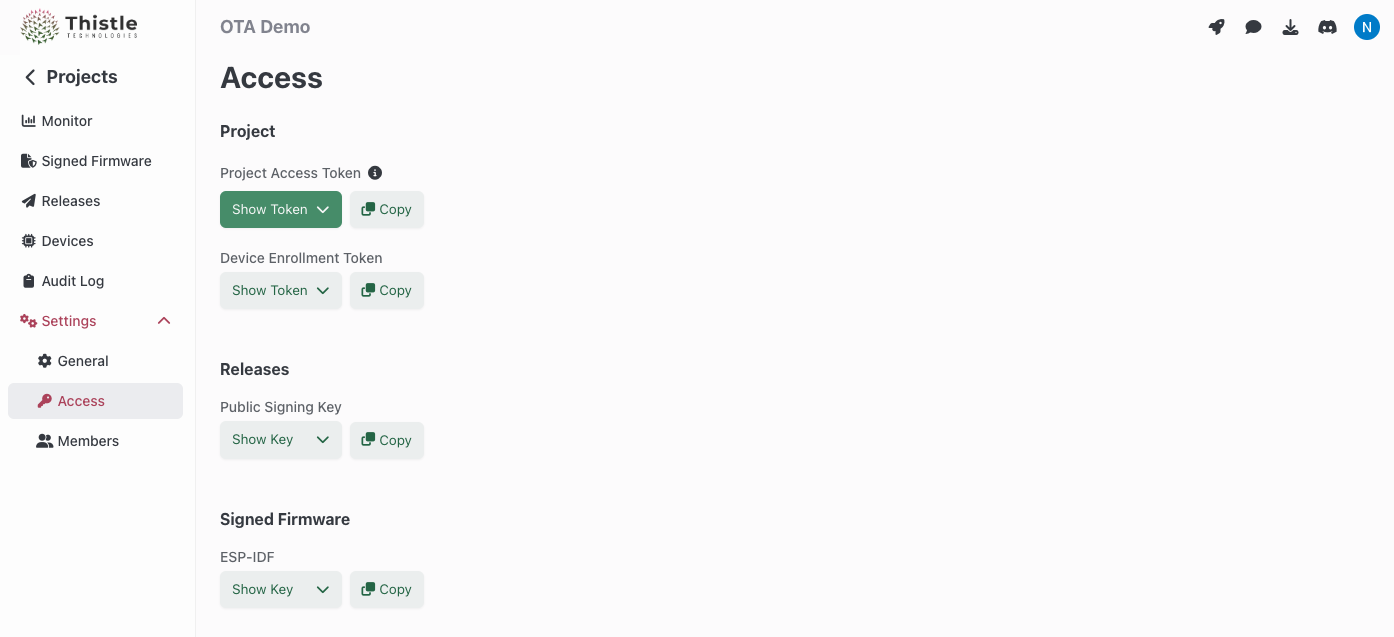
- On the Thistle Control Center App. Visit
the settings section of a project to obtain the API token (“Project Access
Token”) to be used as
THISTLE_TOKEN in the configuration step below.
TRH configuration and initialization
Configure your Thistle project’s access token for TRH
$ export THISTLE_TOKEN=$(cat)
(paste access token, press enter, then ctrl-d)
$ ./trh --signing-method="remote" init
# Set up your project's access token - Windows PowerShell
$ $env:THISTLE_TOKEN = "[Access Token Obtained from Thistle App's Project Settings section]"

$ .\trh.exe --signing-method="remote" init
trh init command. This creates a Cloud-KMS-backed key pair on the Thistle backend;
if a key pair already exists on the backend, the public key portion is returned.
The private key in the key pair is used to sign the OTA update bundle and
AI model files. An OTA update manifest file template manifest.json is
also created locally in the current directory.
Your local working environment is now ready.
Prepare and release a digitally signed AI model file
Package an OTA update bundle containing a dummy AI model file, model.pt, which
will be installed at path /tmp/model.pt on a device.
$ mkdir -p release
# Create a dummy AI model file for demonstration
$ echo "This is a dummy PyTorch AI model file" > release/model.pt
# File model.pt will be installed on target system at /tmp/model.pt
# Note the --sign-ai-model flag
$ trh --signing-method="remote" prepare \
    --target="release" \
    --file-base-path="/tmp/" \
    --sign-ai-model

Read manifest at "./manifest.json"
Processed file "release/model.pt"
Signed file "release/model.pt" with timestamp 1764896091.121211750
Signature saved to "release/model.pt.thistlesig"
Signature: 1764896091.121211750:MEUCIQCA5WCLzQkK2/3+gB7QfTirBOf00nT0ao0J941ywg+xSAIgV3Glt6rBxW9bef6Uicj6P4lFTTHSWV99KWmUPQF9Kyw=
Processed file "release/model.pt"
Processed file "release/model.pt.thistlesig"
Manifest amended successfully
--sign-ai-model flag is present, trh prepare iterates over all
files under the target release directory, and signs each file using the private
key to create a signature file at /path/to/release/filename.thistlesig, where
/path/to/release/filename is the file to sign. In our case, the signature file
for release/model.pt is created as release/model.pt.thistlesig.
Publish the signed AI model file for OTA update
Release the prepared OTA update bundle including the AI model file and its
signature to Thistle backend.
trh --signing-method="remote" release
Get AI model file with TUC
Create a TUC configuration file tuc-config.json for a device.
$ trh --signing-method="remote" gen-device-config \
    --device-name="demo-device" \
    --enrollment-type="pre-enroll" \
    --persist="/tmp/ota" \
    --config-path="./tuc-config.json"
tuc-config.json on a device where tuc is run to receive
the AI model. In this guide, we will run tuc on the same machine where trh
is run.
# Run tuc in background
$ tuc --log-level info -c tuc-config.json &
/tmp/model.pt and /tmp/model.pt.thistlesig,
respectively.
Verify AI model in AI application
To verify that the AI model is indeed deployed with Thistle OTA at a specified
time, an AI application can call (shell out to) tuc with tuc’s verify-file
subcommand
# Should see the claimed signing timestamp in output and ".. success" in the
# output
$ tuc --log-level info -c tuc-config.json verify-file /tmp/model.pt /tmp/model.pt.thistlesig
.. Device id: 318f89a819844152e9cdc7a23e4b9b84
!! Thistle client starting up - version 1.7.1
.. signature is claimed to be signed at timestamp 1764896091.121211750
.. signature verified with public key #0 type ecdsa
.. success
echo $?
0
# Create a modified model file and verify
$ head -c 1024 /dev/urandom > /tmp/bad_model.pt
$ tuc --log-level info -c tuc-config.json verify-file /tmp/bad_model.pt /tmp/model.pt.thistlesig
.. Device id: 318f89a819844152e9cdc7a23e4b9b84
!! Thistle client starting up - version 1.7.1
.. signature is claimed to be signed at timestamp 1764896091.121211750
!! can't verify signature with public key #0 type ecdsa
.. ring::error::Unspecified
.. failure
!! signature verification failed: invalid signature - could not verify with public keys provided
$ echo $?
1
tuc verify-file to make a
decision on how to proceed.