

- encrypt and publish an AI model file using Thistle Release Helper (TRH), and
- fetch the encrypted AI model file and decrypt it on-device using Thistle Update Client (TUC)
Tools needed
-
Version 1.8.0 (or above) of TUC and TRH for your platform
- The Thistle Update Client: A binary to run on the device side to obtain the latest OTA update
- The Thistle Release Helper: A CLI developer tool to prepare and publish OTA releases
- One may also try out TUC and TRH on a web browser using Thistle OTA update demo
-
On the Thistle Control Center App. Visit
the settings section of a project to obtain the API token (“Project Access
Token”) to be used as
THISTLE_TOKENin the configuration step below.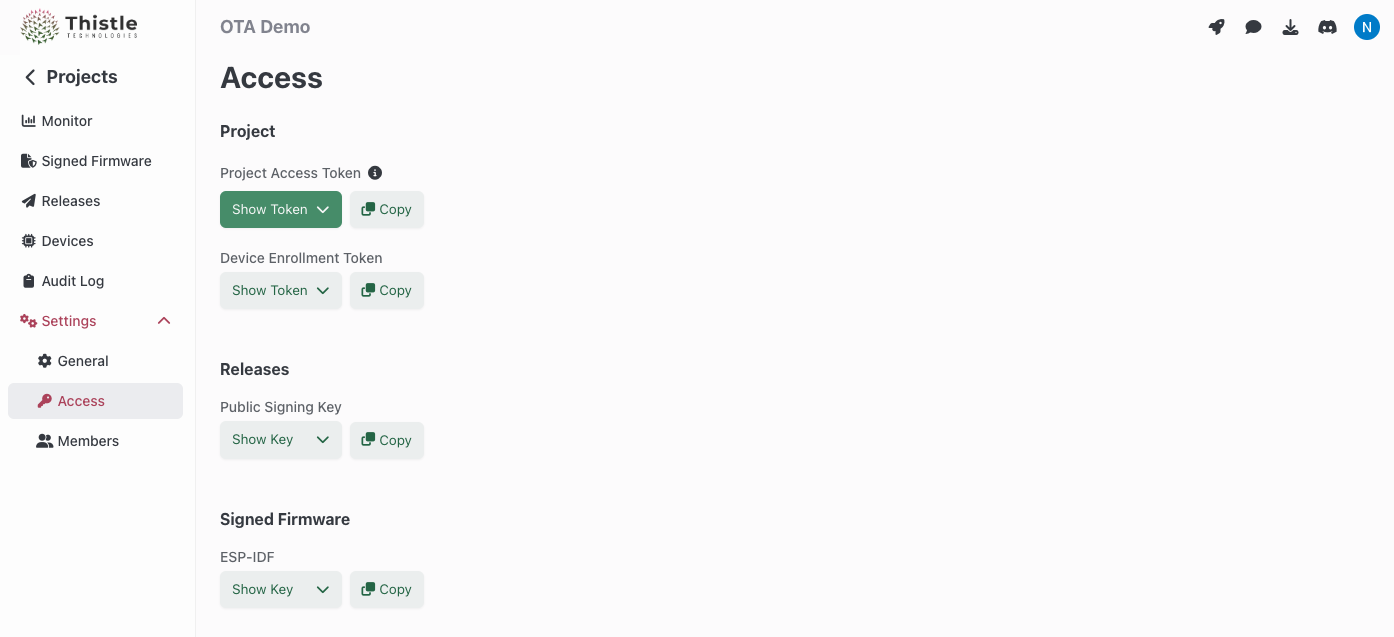
TRH configuration and initialization
Configure your Thistle project’s access token for TRH- Bash
- Windows PowerShell
trh init command. This creates a Cloud-KMS-backed key pair on the Thistle backend;
if a key pair already exists on the backend, the public key portion is returned.
The private key in the key pair is used to sign the OTA update bundle and
encrypt AI model files. An OTA update manifest file template manifest.json is
also created locally in the current directory.
Your local working environment is now ready.
Prepare and release an encrypted AI model file
Package an OTA update bundle containing a dummy AI model file,model.pt, which
will be installed in encrypted form at path
/tmp/ota/pfe-install/model.pt.thistlepfe on a device.
--encrypt-ai-model flag is present, trh prepare iterates over all
files under the target release directory and encrypts each file to produce a
per-file encrypted (PFE) artifact with the .thistlepfe extension. In our case,
ota_release/model.pt is encrypted as ota_release/model.pt.thistlepfe, which
will be delivered and stored on-device at
/tmp/ota/pfe-install/model.pt.thistlepfe.
Publish the encrypted AI model file for OTA update
Release the prepared OTA update bundle including the encrypted AI model file to Thistle backend.Get encrypted AI model file with TUC
Create a TUC configuration filetuc-config.json for a device.
tuc-config.json on a device where tuc is run to
receive the encrypted AI model. In this guide, we will run tuc on the same
machine where trh is run.
/tmp/ota/pfe-install/model.pt.thistlepfe. The file remains
encrypted on the device until explicitly decrypted.
Decrypt AI model on device
To decrypt the AI model file for use, an application callstuc with the
decrypt-file subcommand, supplying the encrypted file path and the desired
output path.
/tmp/decrypted/model.pt.
Combining with other flags
The--encrypt-ai-model flag can be combined with other trh prepare flags:
- Encrypted OTA (
--encrypt-ota --zip-target): Encrypts the entire OTA bundle in transit and in the cloud, while also per-file encrypting each AI model at rest on the device. - AI model signing (
--sign-ai-model): When both--encrypt-ai-modeland--sign-ai-modelare present, the signature is generated for the encrypted AI model file (the.thistlepfeartifact).
More options
In this get started guide, we explained the usage of the Thistle Update Client alongside the Thistle Release Helper to deliver per-file encrypted AI models - and many more use cases are supported!- File update
- AI model update, with provenance
- Encrypted OTA update
- A/B tested Raspberry Pi 4 update support
- Support for pre & post install scripts
- OTA bundle signing using external signing tools