
- The OTA update bundle is encrypted in transit and in the cloud
(
--encrypt-ota --zip-target) - The AI model file is end-to-end encrypted and remains encrypted at rest on
the device until explicitly decrypted (
--encrypt-ai-model) - The AI model file is digitally signed so the device can verify its
authenticity before use (
--sign-ai-model)
Prerequisites
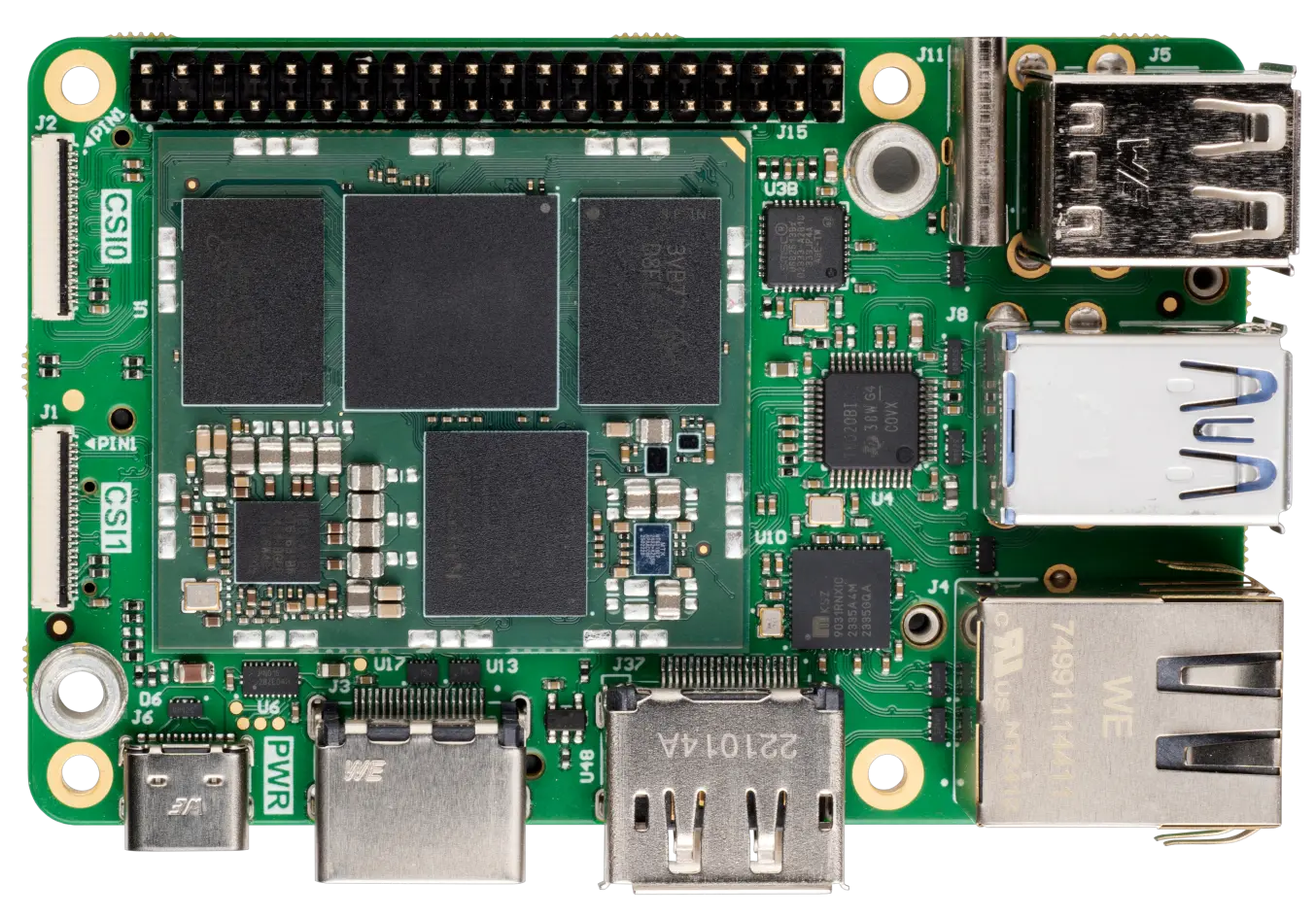
- A Grinn Genio 700 SOM board with a working Linux image and network connectivity. See the Grinn Genio 700 SOM setup guide for flashing instructions.
-
Version 1.8.0 (or above) of TUC and TRH for your platform
- The Thistle Update Client: runs on the Grinn board to fetch and install OTA updates
- The Thistle Release Helper: runs on your laptop/desktop to prepare and publish releases
-
On the Thistle Control Center, obtain the
API token (“Project Access Token”) from your project’s settings to be used as
THISTLE_TOKENbelow.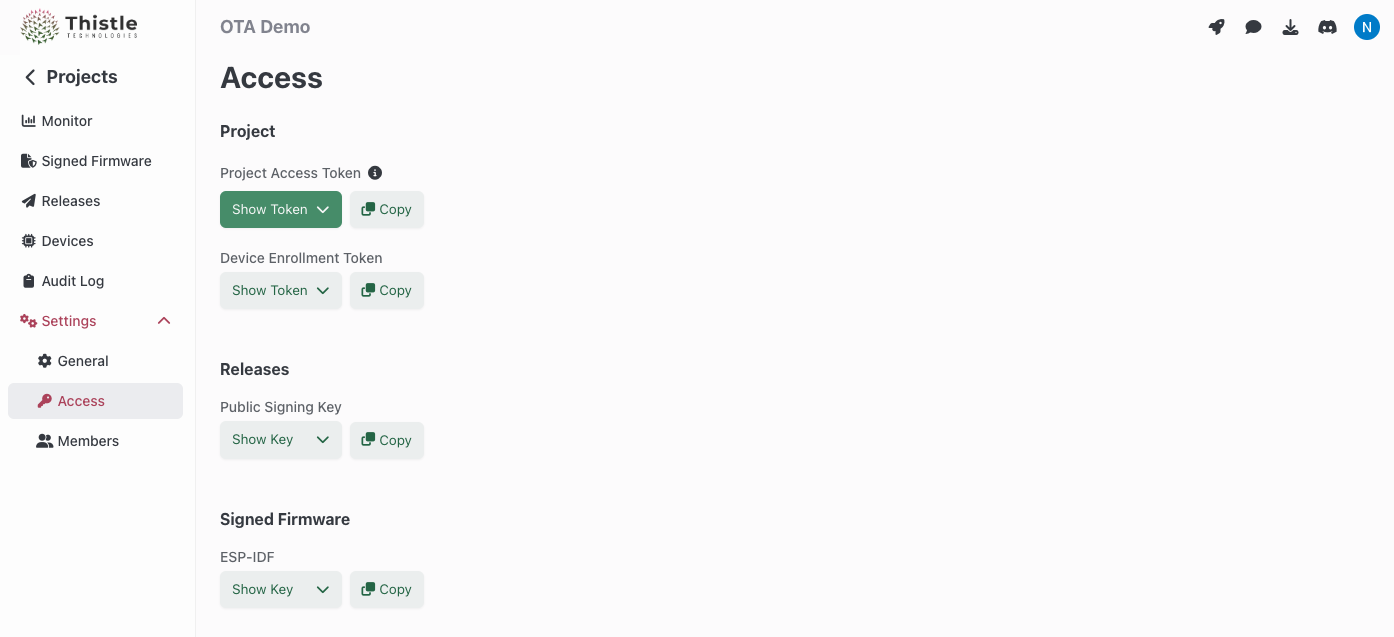
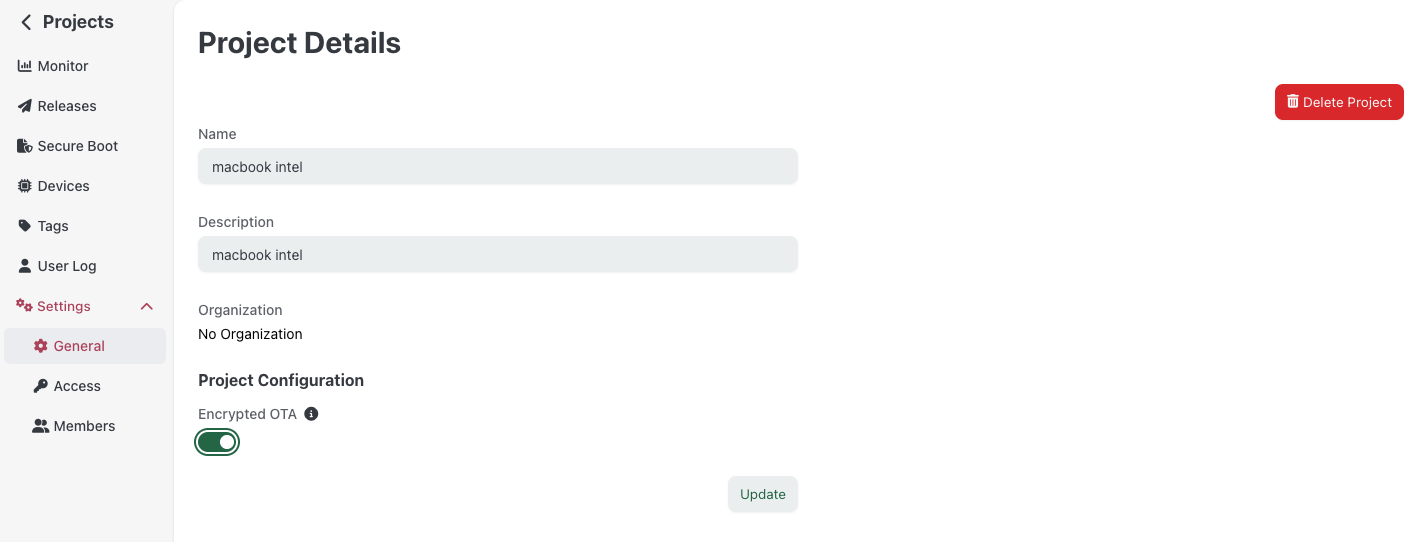
Step 1: Initialize TRH (laptop/desktop)
Configure your Thistle project’s access token and initialize the local working environment.- Bash
- Windows PowerShell
init command creates a Cloud-KMS-backed key pair on the Thistle backend
(or retrieves the existing public key if one already exists). The private key is
used to sign the OTA update bundle, sign AI model files, and encrypt AI model
files. A manifest template manifest.json is created locally in the current
directory.
Your local working environment is now ready.
Step 2: Prepare the encrypted and signed AI model (laptop/desktop)
Place the AI model filemodel.pt in a release directory and run trh prepare
with all three security flags.
- Encrypts
model.ptintomodel.pt.thistlepfe(per-file encryption) - Signs the encrypted
model.pt.thistlepfeto producemodel.pt.thistlepfe.thistlesig - Packages both files into an encrypted OTA zip bundle
Step 3: Publish the release (laptop/desktop)
Upload the encrypted OTA bundle and signed manifest to the Thistle backend.Step 4: Generate device configuration (laptop/desktop)
Create a TUC configuration file for the Grinn board.tuc-config.json to the Grinn Genio 700 SOM board (e.g.,
via scp).
Step 5: Receive the OTA update (Grinn board)
On the Grinn board, download the TUC binary (if not already present) and run it with the configuration file./tmp/ai-models/model.pt.thistlepfe and its signature at
/tmp/ai-models/model.pt.thistlepfe.thistlesig.
The AI model file remains encrypted at rest on the device. TUC handles OTA
bundle decryption automatically, but the per-file encrypted model requires
explicit decryption (next step).
Step 6: Verify the AI model signature (Grinn board)
Before decrypting, verify that the encrypted model is authentic and was signed by the expected release pipeline.verify-file
will report failure and return a non-zero exit code. Your application can use
this result to decide whether to proceed.
Step 7: Decrypt the AI model for inference (Grinn board)
Once verified, decrypt the model file for use by the AI application./tmp/decrypted/model.pt for inference.
Putting it all together
The recommended workflow for an AI application on the Grinn board is:- TUC fetches and installs the encrypted OTA bundle automatically
- The application calls
tuc verify-fileto confirm the model’s authenticity - If verification succeeds, the application calls
tuc decrypt-fileto obtain the plaintext model - The application loads the decrypted model for inference