

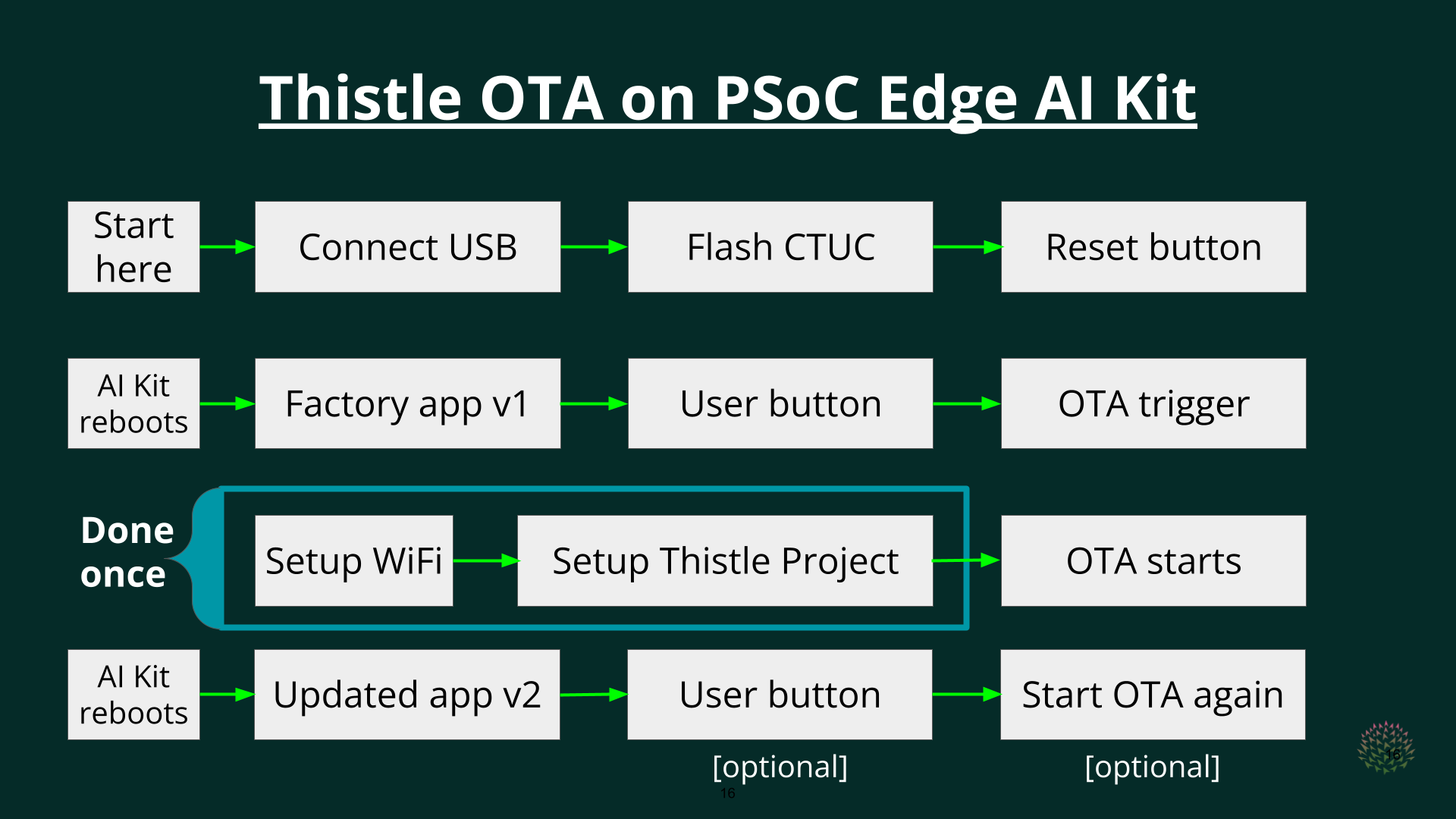
Tools Needed for This Tutorial
Hardware
- One PSoC Edge AI Kit Evaluation board with PSOC™ E84
for Artificial Intelligence
(the board has multiple sensing capabilities: Voice, Radar, Audio, Movement, etc.) - One USB-C cable
- One desktop/laptop PC running MacOS X, Windows, or Linux for publishing OTA updates, programming the PSoC Edge AI kit, and observing its logs using a terminal application.
Software
- The ModusToolbox Programmer to flash the PSoC Edge AI Kit
- A Device Enrollment Token from the Thistle Control Center
- The C Thistle Update Client (CTUC) for the PSoC Edge AI kit: download CTUC here
- A terminal application like minicom
Demo Preparation
Connect PC and PSoC Edge AI Kit over USB Port
Connect the USB-C cable to the USB port of the PSoC Edge AI Kit that is further away from the pin header (see picture below). Plug the other end of the USB-Ccable to the PC.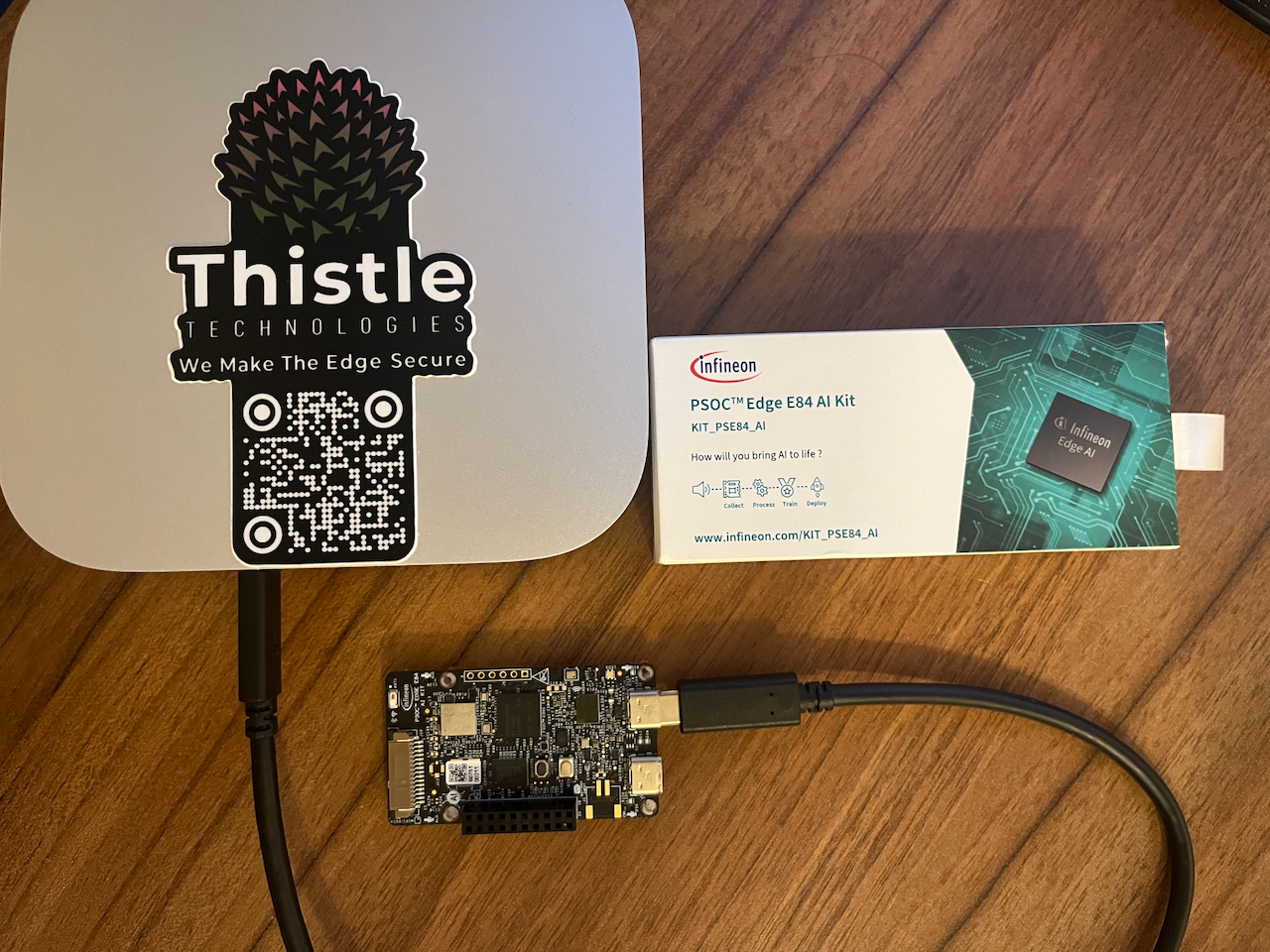
Quick Start
- Install the ModusToolbox Programmer
- Download our CTUC binary for PSoC Edge
- Flash the CTUC binary to your PSoC Edge AI Kit using the ModusToolbox Programmer
- Start minicom or your preffered terminal application
- Press the black
Reset buttonand observe:
Device Enrollment Token
The Device Enrollment Token is unique per project and can be found in your Thistle Control Center (TCC). Create a new project by pressing the+Project button in the top right of TCC:
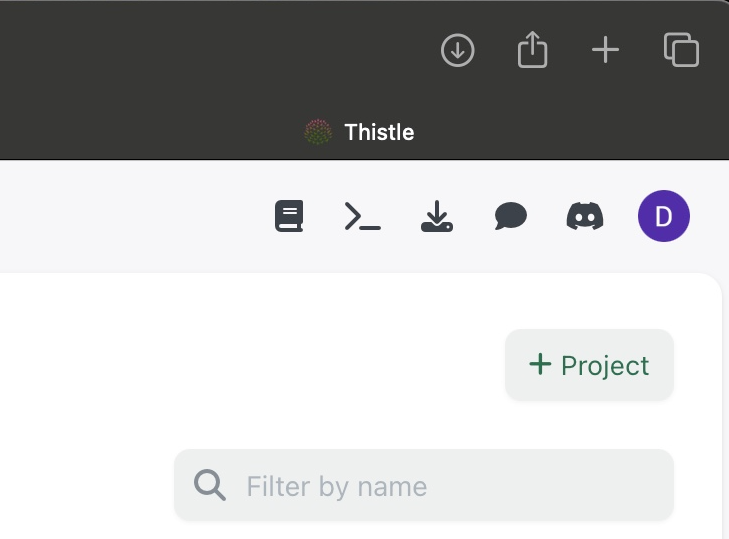
settings (it is the last menu on the left),
open the access submenu and press the copy button next to the Device Enrollment Token:
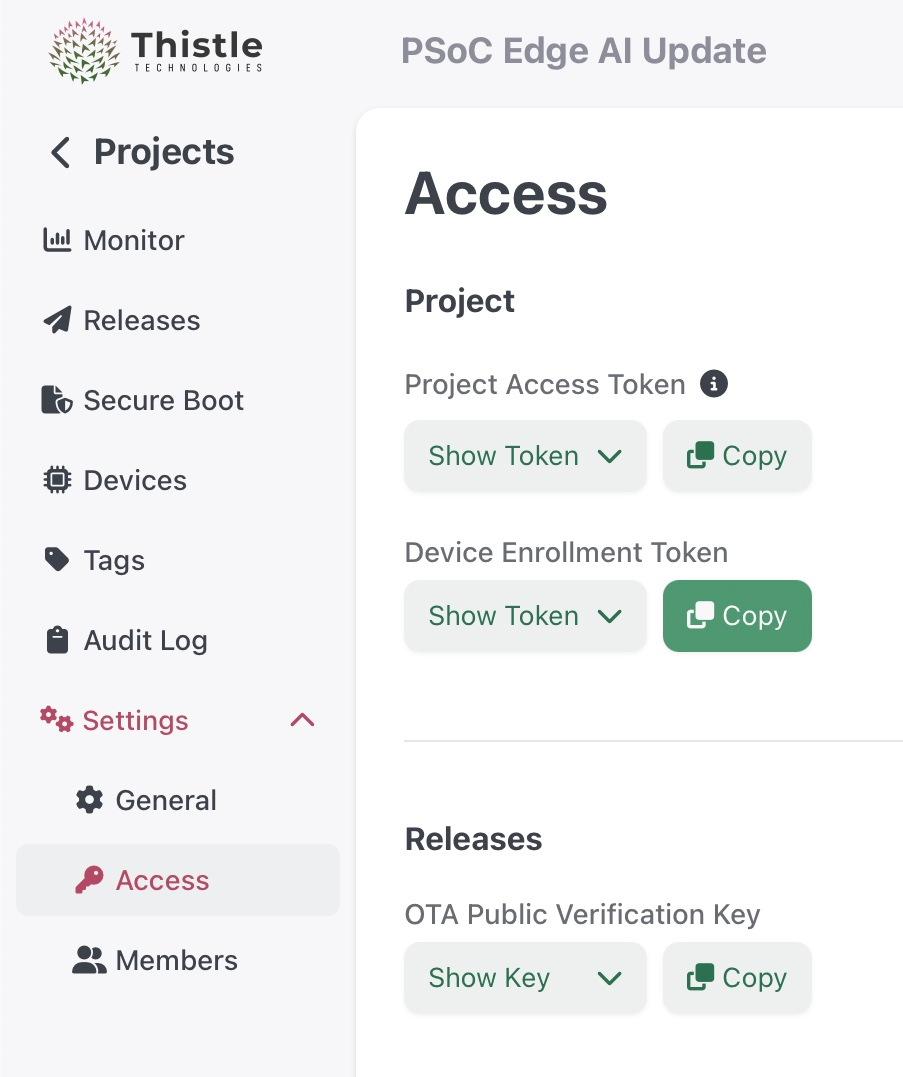
Device Enrollment Token and press “Enter”.
The next prompt is for the Thistle Public Verification Key that is available in the same settings page.
Copy the OTA Public Verification Key, then paste it into the terminal.
Thistle Update Client enrolls the device to TCC once and acquires a unique device id
We need to have at least one Release published in our project before continuing further.
OTA Release
Go to your project in TCC and choose the second menu on the right namedReleases.
In the same place where we had the +Project button, now we have the +Release button.
Create a new release by pressing the +Release button in the top right of TCC and
you should a similar window:
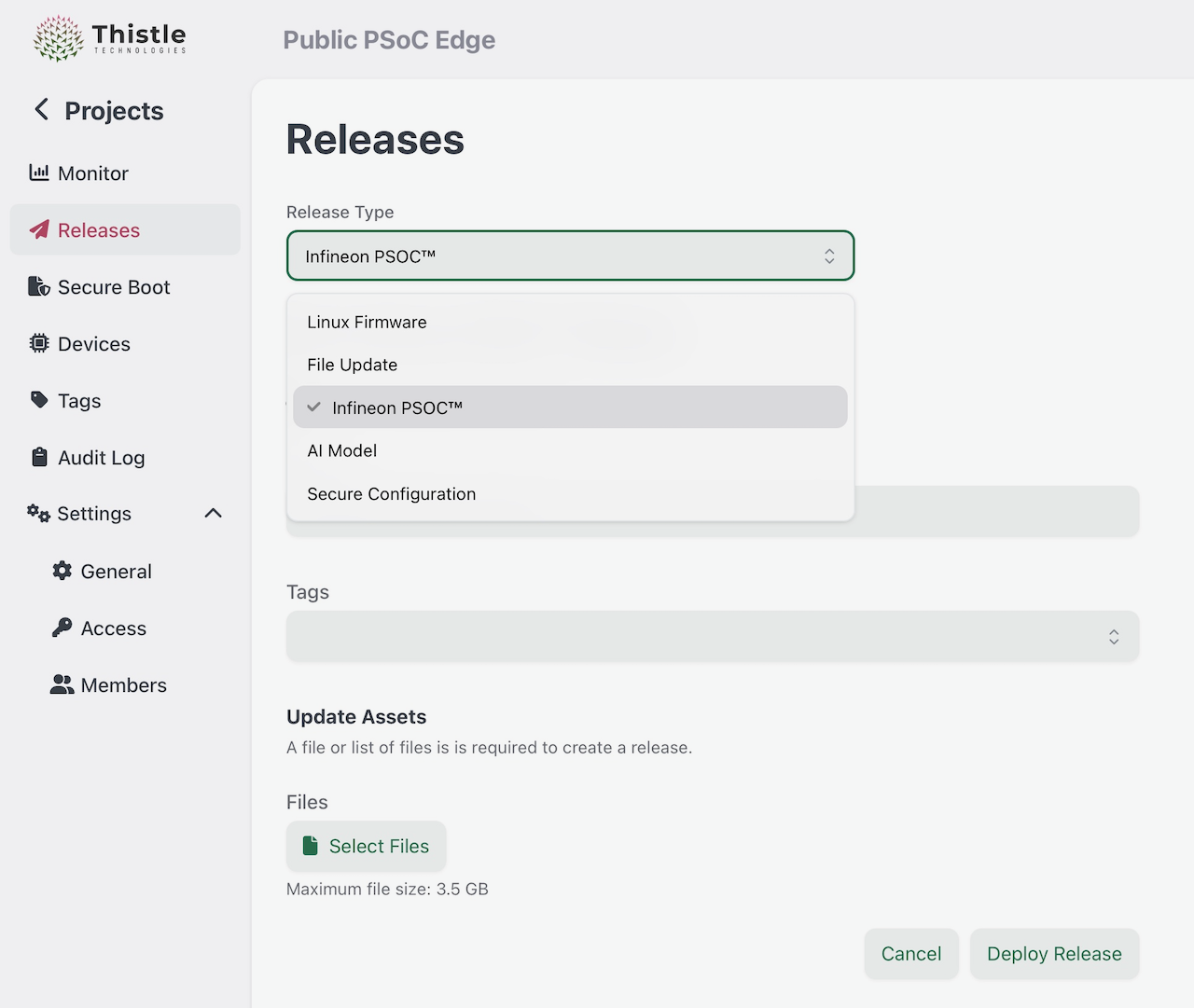
- Select the “Infineon PSoC” from the drop-down menu
- Press the “Select Files” button and upload the DEEPCRAFT-AlarmModel.bin (link below)
- Press the “Deploy Release” button. That’s it!
Start OTA Update
Press the whiteUser button on the PSoC Edge AI Kit
OTA update on PSoC Edge can take up to 5 minutes depending on the size of your AI Model.
Conclusion
💡 Thistle OTA on PSoC Edge can be ran as many times as you want. Add a new Release to your TCC project with a different AI Model and press the whiteUser button to start OTA.
This tutorial shows how to perform an update on the PSoC Edge AI Kit using the C Thistle Update Client (CTUC).
This process can be automated to update a fleet of devices. We support different enrollment setups,
either based on Trust On First Use (TOFU), or only accepting pre-enrolled devices.
Contact us for more information